
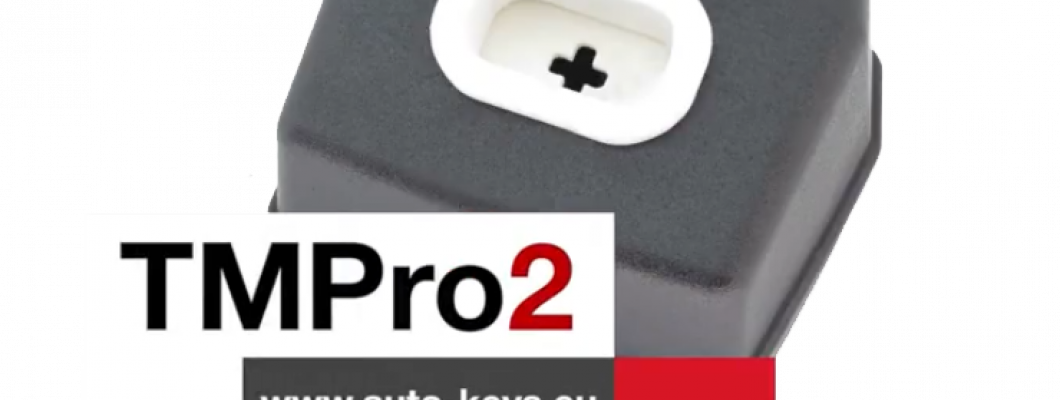
What is TMPro 2
Transponder Maker Pro (also known as TMPro keymaker or TMPro2 keymaker) are softwares for transponder key making,transponder key programming,transponder key copying and PIN code/security code calculating.Protection programmer is small box, which have to be connected to free PC USB port.Software user interface supports 10 languages - Bulgarian,English,French,Portuguese, Polish, Hungarian, Spanish, Serbian, Italian and Czech.They are simply to use and offer wide range of softwares that supports various immoboxes and keys. All softwares are auto-updateable to latest version available on server.At start of software it checks if there is new version released.If released,software automatically updates itselfs,this way you always run latest versions. TMPro2 softwares are designed to help in locksmith`s job.
TMPro 2 is a module based device.Which let you buy the base hardware and then add only the modules you need.
The Basic TMPro kit contains:
- TMPro programmer
- Cables and adaptors for programing microcontrolers and memmories
- USB cable type A to B
- Software for instalation on computer
- Orange5 case
How to use it?
- Connect TMPro to the adapter using via the cable
- Connect TMPro to the computer using the USB cable
How to install the software for TMPro 2?
Follow the steps:
- Disable the driver signature for windows.
- Go to the start menu , in the search box type CMD , right click on Command Promnt and select Run as administrator.Click Yes if Windows ask for permition.
- Inside the opened window you need to type the following 3 lines,and press Enter after every single line:
- bcdedit /set testsigning on
- bcdedit -set loadoptions DDISABLE_INTEGRITY_CHECKS
- bcdedit.exe - set TESTSIGNING ON
- Click here to download the drivers from our website.
- Click here to download the software from our website.
- In your Device Manager tab will appear Other devices, click it to expand and you should see the "Orange5".
- Open My Computer , open drive C: , make a new folder called TMpro2.Extract the downloaded archives in that folder(C:\TMpro2).
- Open TMPro2software folder, and right click on the TMPro2.exe file. Select send to Desktop to create a shortcut for the software on your Desktop.
- Go to your Desktop, right click on My Computer and select Manage.
- From the opened window click on Device Manager.
- Connect your TMPro2 with your computer with the USB cable.
- On the window(Computer Management), choose Other devices and your Transponder Maker Pro should appear. If it does not appear then try to plug the cable out and in again.
- Press the right button on your mouse and choose Update Driver Software.
- Click Browse my computer for driver software.
- Click Let me pick from a list of device drivers, press Next.
- Click on Have Disk, click Browse, go to My Computer, click on Lockal Disk(C:), click on TMpro2 folder.
- Open the TMPro2Drivers folder, choose the ftdibus file and click Open
- On the window Install From Disk press Ok, press Next.
- Click Install this driver anyway. The instalation may take a while so please be patient.
- When the instalation is over, click Close
TMPro2 is now ready for work!
If you are trying to run TMPro software BEFORE installing of USB drivers, you will face this error: “Program cannot start because FTD2XX.dll is missing”.
If in left down corner of software you see message “Hardware NOT found“, this means that something with driver instalation is wrong.
Restart computer and try again with installation.You can check if hardware installation is good – in Device Manager – USB devices – you have to find “Transponder Maker Pro 2“.
NOTE about automatic updates:
- If you are running version of main software 2.352 and older, automatic software update will not work.
- To enable automatic updates: at first you must DELETE this old version of software.
- Then automatic software update will work again and you will receive updates.
NOTE for owners of older hardware without round 8-pin connector:
If you wish to upgrade your hardware for to use full functionality, you must buy upgrade set.
How to upgrade your TMPro with the new and improved interface:
- If you dont have TMPro renew kit go to : auto-keys.eu. You will need TMPro renew kit, Soldering and Screwdrivers.
- Disassemble your old TMPro:
- Remove the 2 body holder screws. They are on the back of the TMPro.
- With hands remove the port. Do not use too much force.Be carefull not to damage the wire connector inside.
- Desolder the wire connector.
Use the soldering iron to desolder the wire connector. - Separate the PCB from the board.
Remove the screws using screwdriver. - Prepare the new TMPro.
Disassemble your new TMPro interface into 3 components. - Attach the PCB to the board using screwdriver.
- Place the Connnector into its socket and fix it with the nut.
- Place the botton cover and use a screwdriver to fix it in possition.
- Use soldering iron to solder the coil with the wire connector.
- Possition the coil into the socket and press down with your hands untill its fixed into place.
For more videos about TMPro 2 check our youtube channel here
1712 Comment(s)
This guide on the AllPanelExch App is excellent. The explanations are simple and helpful for both beginners and regular users.
Great article about AllPanelExch App Download APK. The instructions are clear, making it easy for readers to understand the process.
Great article about AllPanelExch App Download APK. The instructions are clear, making it easy for readers to understand the process.
Matchbox9 is a platform where users can explore cricket exchange features, live sports updates, and an easy-to-use interface for an enhanced online experience.
Excellent article about AllPanelExch Admin. The information is well organized and presented in a reader-friendly style.
Thanks for sharing this guide on the AllPanelExch App. The content is engaging and very easy to follow.
I found this article on AllPanelExch.com very useful. The guide provides valuable insights in simple language.
Nice explanation of AllPanelExch APK. The content is practical, informative, and enjoyable to read.
Great overview of AllPanelExch ID. The article is detailed enough while remaining easy to understand.
This guide on www AllPanelExch App is impressive. The writing is smooth, and the information is very useful.
Excellent post about AllPanelExch Login. The explanations are straightforward and answer common questions clearly.
Thanks for this detailed article on the AllPanelExch Admin Panel. The content is informative and well structured.
I really liked this guide on AllPanelExch ID App. Everything is explained in a simple and organized manner.
Great article on AllPanelExch Registration. The content is beginner-friendly and full of useful information.
This post on www AllPanelExch.com is easy to read and packed with valuable insights. Great work!
Matchbox9 is an online sports betting platform that provides access to betting markets across various sports and international competitions. Users can place wagers before an event starts or participate in live betting as the action unfolds. The platform is designed to deliver a smooth betting experience with real-time odds, multiple betting markets, and an interface that is accessible on both desktop and mobile devices.
Great explanation of AllPanelExch ID. The article answers common questions and offers useful information.
This post on www AllPanelExch App is very helpful. The guide is well structured and enjoyable to read.
I really liked this article about AllPanelExch Login. The explanations are practical and written in simple language.
Diamondexch offers a smooth and secure online sports exchange experience with a user-friendly interface, fast access, and exciting live sports action. It’s a reliable platform for sports enthusiasts looking for seamless gameplay.
Leave a Comment